Muse
Use Muse to turn plain language, screenshots, and rough ideas into structured UXit work.
Overview
Muse logs and training
UXit does not train or tune Muse on your private Muse logs. You can choose to submit a Muse conversation if it would help support investigate an issue or improve future capabilities.
Muse is UXit's AI drafting assistant for UX planning work. It helps turn rough notes, client requests, screenshots, feature ideas, accessibility concerns, and scope dumps into structured UXit drafts.
The difference is that Muse is built around UXit's product model. It understands the relationship between Requirements, Use Cases, Acceptance Criteria, guideline Conditions, evaluations, and handoff work. Instead of leaving you with a generic chat response, Muse helps produce reviewable drafts that can move into the product.
Plain language, structured output
You do not need to write a perfect prompt first. Tell Muse what you are trying to build, fix, review, or clarify, then use Drafts to turn the conversation into structured UXit work.
Find Muse
Muse is currently available from Kanban and Guidelines. In Kanban, look for the Muse button in the toolbar.

What You Can Draft
Muse is designed for the work UXit already supports:
- Draft requirement cards from messy product scope.
- Break product ideas into use-case direction.
- Turn user goals into acceptance-criteria ideas.
- Draft guideline conditions for evaluations.
- Review screenshots and interface problems with image recognition.
- Switch
Modeswhen you want Muse to behave differently.
How Muse Works
To use Muse:
- Open
KanbanorGuidelines. - Click
Muse. - Choose a
Modeif you want a specific working style. - Type into the
Muse...field. - Add images when visual context matters.
- Review the response in
Chat. - Open
Drafts. - Edit, include, remove, or approve the draft cards.
Review before approving
Muse drafts are a strong starting point, not final sign-off. Review language, scope, and acceptance details before approving anything into UXit.
Chat
The Chat tab is where you shape the work before it becomes a draft. Write naturally, paste messy notes, describe a client request, attach images, or ask Muse to reason through an unclear UX problem. Muse can clarify the direction, surface missing scenarios, and turn rough input into something ready for Drafts without adding anything to UXit yet.
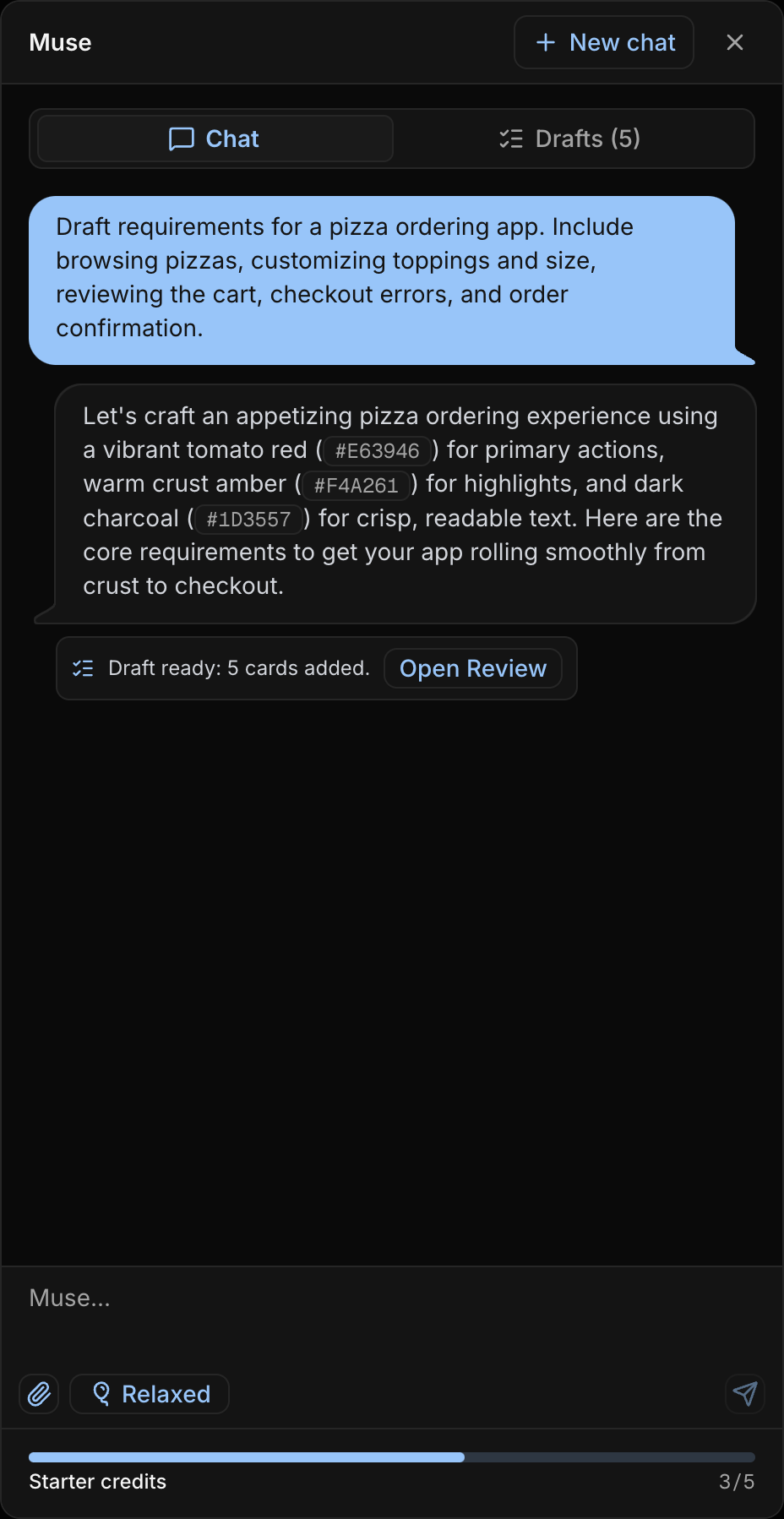
Drafts
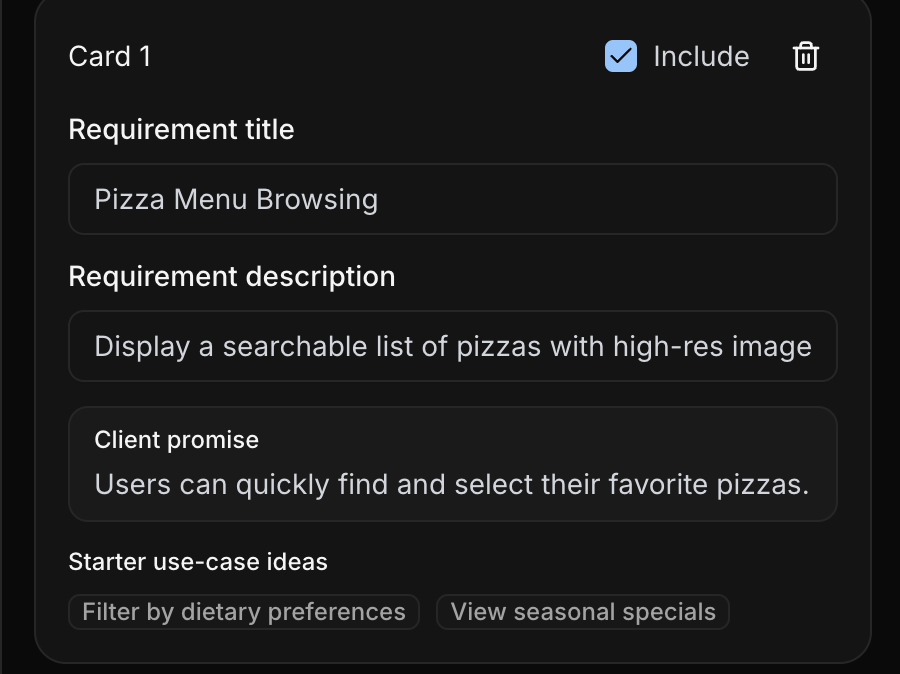
The Drafts tab is where Muse turns the conversation into editable UXit cards for review. Adjust the title, description, client promise, and starter use-case ideas, then choose which drafts to include before approving them into the product. This keeps Muse fast without skipping the human decision about scope and language.