Condition Details
Review condition-level results, export findings, and refine notes or images after an evaluation.
Overview
Condition Details is the audit layer behind Metrics. When a chart shows a category drop, this is where you see the exact criteria that created it.
Each row is tied back to the selected Guideline Set, category, guideline ID, and recorded result. That makes the score traceable instead of vague. You can point to the condition that passed or failed, add the missing context, attach images, and export the result set when the findings need to move outside UXit.
In the product, Metrics and Details live on the same Analytics screen as two tabs. In the documentation, they are split into separate pages so the chart view and the condition table are easier to explain.
Details Table
The table is populated from the selected benchmark evaluation and shows each included guideline condition individually.
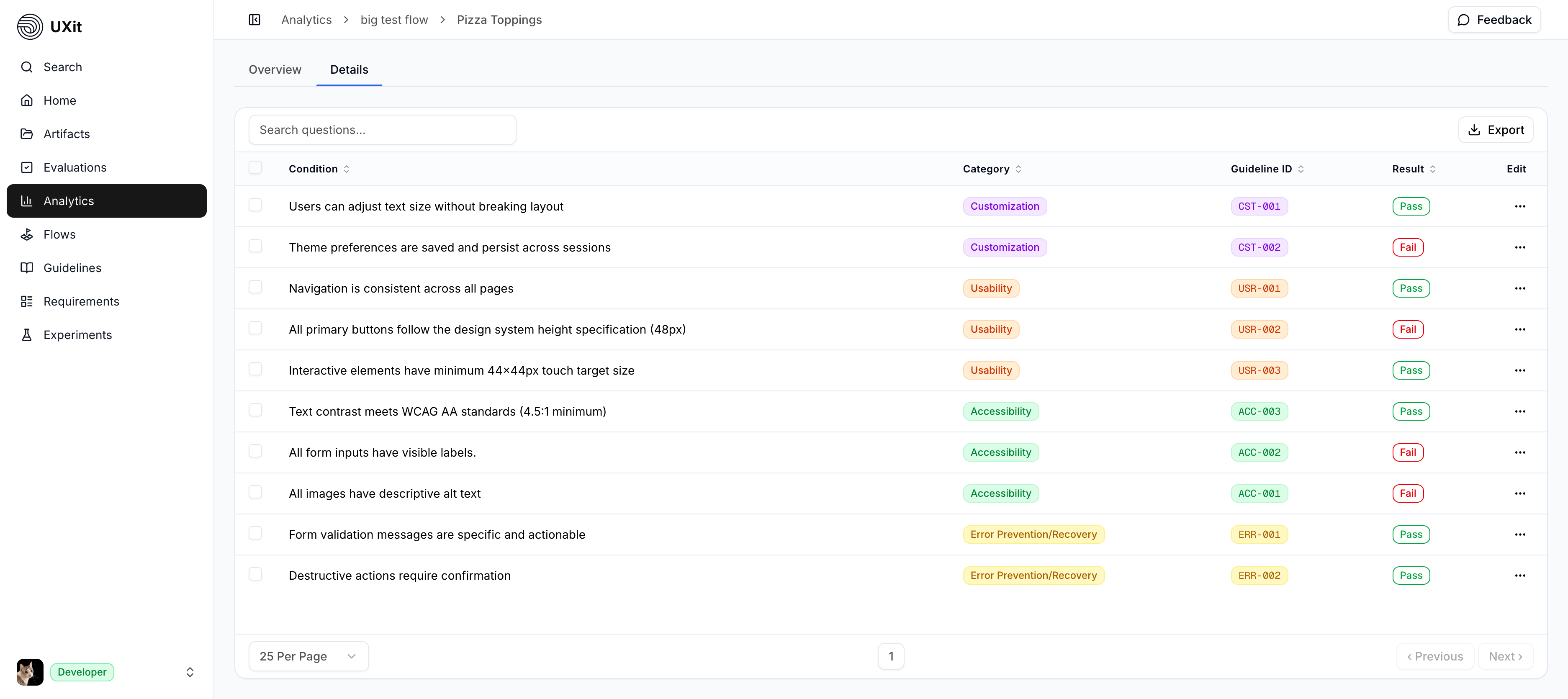
The top controls support review and export:
ExportDownloads the current condition results for outside review, reporting, or handoff prep.Search conditionsFinds conditions by text.- Row selection checkboxes for selecting one or more conditions in the table.
- Pagination controls when the result set spans multiple pages.
Each row includes:
ConditionThe guideline criterion being evaluated.CategoryThe guideline category the condition belongs to.Guideline IDThe short reference ID for that condition.ResultThe recorded outcome, such asPassorFail.EditOpens the condition in the side panel.
Use the table when the chart tells you where to look, but not enough to act. For example, a category may drop between v3 and v4, but the table shows whether that came from contrast, copy clarity, error recovery, touch target size, or another specific criterion.
Export & Handoff
Handoff templates by plan
Freelance plans are limited to 1 Handoff template. Pro and Team plans gain access to more templates for different clients, teams, or reporting formats.
Use Export when the condition results need to leave the table and become something another person can review. The export gives you the structured result set behind the selected evaluation, including the conditions, categories, guideline IDs, and recorded outcomes.
This connects directly to Handoff. Condition Details is where you confirm the evidence; Handoff is where those results can become a cleaner deliverable for stakeholders, developers, clients, or internal review. Before preparing a handoff, use this table to confirm that failed conditions have enough annotation notes and images to explain what happened.
Condition Metrics Drawer
Use the ellipsis button in the Edit column to open the Condition Metrics side panel.
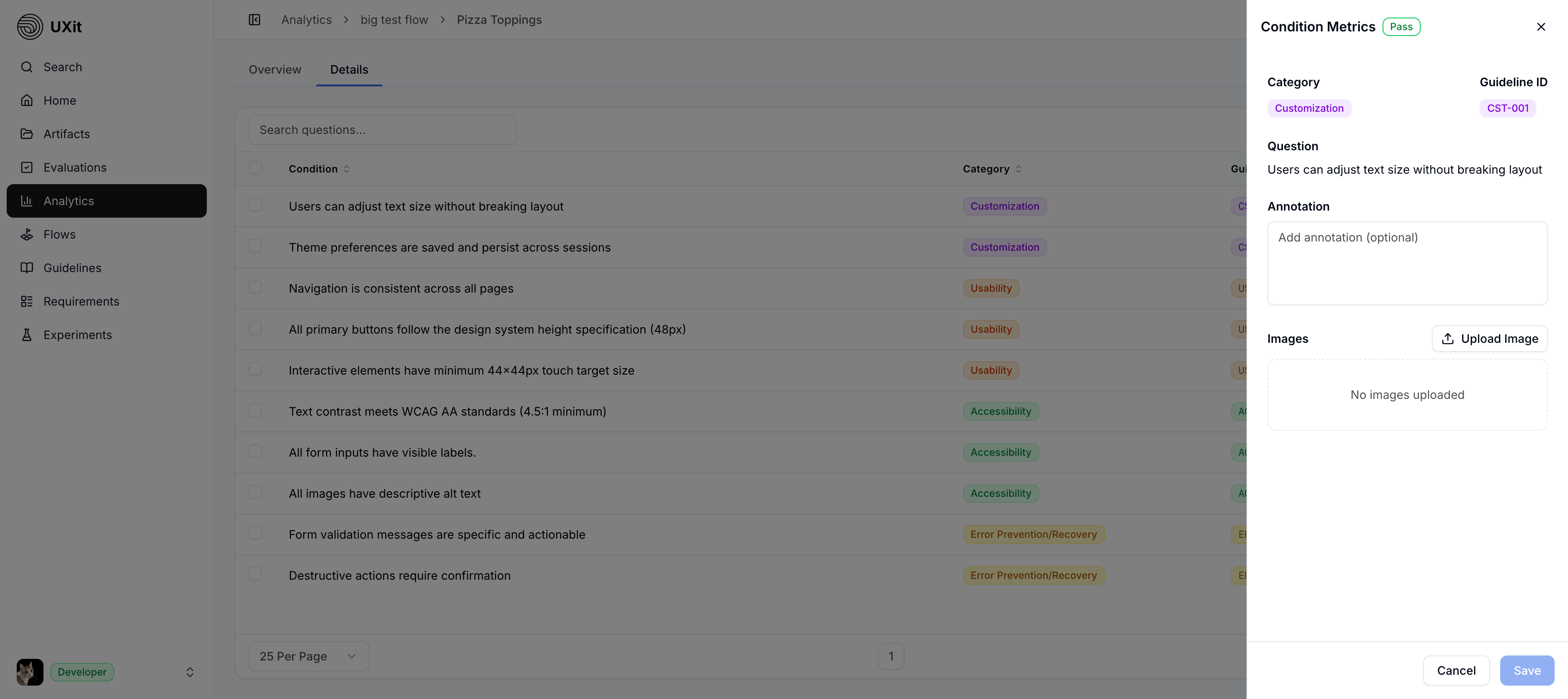
The panel repeats the key information from the table so you can review the selected result without losing context. At the top, you can see the result, category, guideline ID, and condition text for the item you opened.
Use Cancel to leave without saving changes. Use Save after editing an annotation or adding images.
Annotations
The side panel includes an Annotation field for notes.
These notes may already exist if they were added during the evaluation process. They can also be reviewed, updated, or expanded later from Condition Details, which is useful when the evaluator scored quickly and wants to refine the evidence before handoff or review.
Annotations are helpful when a failed condition needs location-specific context. A condition may fail because one button state, one paragraph, one modal, or one breakpoint is wrong inside a larger screen. Instead of relying only on the condition text, the note can explain exactly where the issue appears and what someone should look at next.
Images & Upload Limits
Paid account image handling
Paid accounts receive higher image upload limits, less aggressive compression, and higher-resolution stored images for clearer review and handoff evidence.
Use Upload Image to attach a screenshot, mockup, or reference image to the selected condition. Images appear in the Images area, and multiple images display as a carousel.
Supported annotation image formats are JPG, PNG, GIF, and WebP. Default uploads must be 5MB or smaller. Video uploads are not supported for annotations.
For UXit-hosted storage, large images may be resized to a maximum 1290px long edge, converted to WebP, and compressed to a maximum stored file size of 1MB.
Pro Tips
- Start in
Metricsto find the category or trend that needs attention. - Use
Condition Detailsto confirm the exact criteria behind the score. - Add annotations when a failed condition needs more context than the table can show on its own.
- Attach images when a visual reference explains the issue faster than a long note.
- Use category names and guideline IDs to connect findings back to the original
Guideline Set.