Overview
Review artifact activity, storage usage, and quick actions across your workspace.
Overview
The Overview tab is the top-level summary for the Artifacts workspace.
Use it to get a quick snapshot of artifact activity, structured test storage, uploaded file storage, and common starting points. Instead of listing every record, this page gives you a small set of dashboard cards so you can understand the state of stored work before opening Tests or Files.
Together, these cards act as lightweight planning signals. They can help you notice whether artifact activity is changing, whether storage is getting tight, and which workspace you may want to open next.
Trending Activity
The Trending Activity card shows a high-level view of artifact-related activity over time.
This trend is intended to give you a broad sense of testing momentum across the workspace, not a detailed record of every action. It looks across structured artifact records such as evaluations, guideline sets, requirements, use cases, and benchmarks.
Used carefully, this chart can help surface patterns that are worth investigating. For example, a noticeable dip in activity may suggest a slowdown in testing throughput, a blocked workflow, or a design area that needs attention.
Test Artifact Usage
The Test Artifact Usage card shows how much of your account storage allotment is being used by structured test artifacts.
This card is separate from file storage. It focuses on test-related records and other structured artifact data rather than uploaded media such as images or videos. Structured records are often more compact than file-based assets, but they still count toward your storage usage and can grow over time as more evaluations, requirements, guidelines, benchmarks, and Muse sessions are added.
Use this card as a quick storage gauge for test data at the account level.
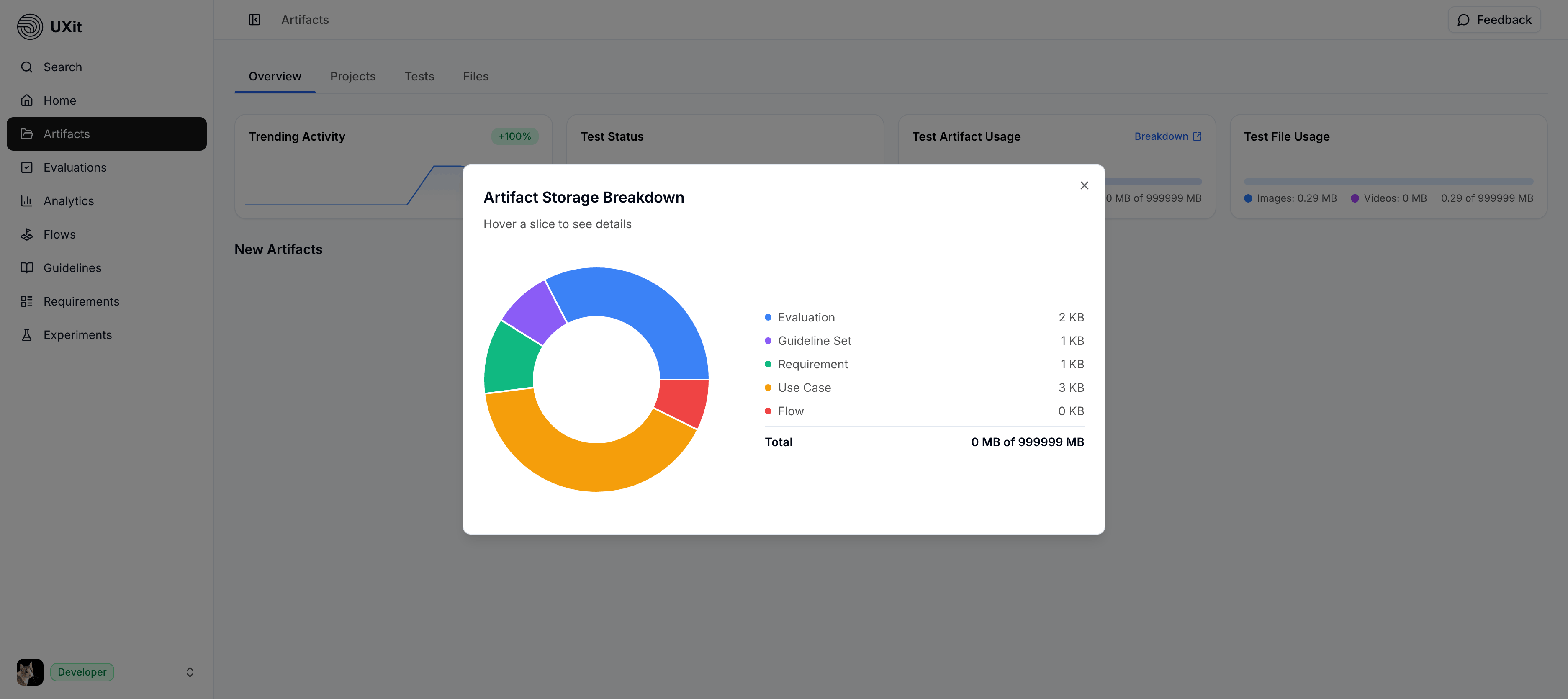
Artifact Storage Breakdown
Use Breakdown in the Test Artifact Usage card to open a more detailed view of structured test storage.
This view displays an interactive donut chart that breaks test artifact usage down by artifact type. Hover over a slice to isolate that category and inspect it more easily. As additional test artifact types are introduced, they can also appear in this breakdown.
File Artifact Usage
The File Artifact Usage card shows how much storage is being used by uploaded file artifacts.
This includes file-based artifacts added through testing workflows, such as images and videos. The card separates usage by file type so you can quickly see how much of your file storage is tied to each category.
Use this card alongside Test Artifact Usage to understand the difference between structured test data and uploaded file assets. This card is the best place to check how much hosted file artifact storage your workspace is using against your plan capacity.
Quick Actions
The lower section of the Overview tab includes Quick Actions.
These tiles open common UXit workspaces or start common creation flows without making you leave the Artifacts area first.
Current quick actions include:
Guidelines: Define the rules Muse and evaluations score every session against.Baselines: Save the product flow later evaluations will compare against.Evaluations: Score a session with a guideline set and a linked baseline.Requirements: Capture what the product must do, with owners and tracking.Use cases: Describe a scenario that proves a requirement in practice.Handoffs: Build a shareable template that packages findings for stakeholders.