Handoff
Create branded report templates and use them when exporting evaluation PDFs.
Overview
Handoff is where you create branded report templates for stakeholder-ready evaluation PDFs.
Use it when an evaluation is ready to leave the product workspace and become something a client, team lead, or stakeholder can review outside UXit.
Client-ready delivery
Handoff turns evaluation work into a polished PDF deliverable. Instead of rebuilding findings in a doc, spreadsheet, or project tracker, export the evaluation with your saved template and send it as the report of record.
Unlike Shareable Links or Privacy exports, Handoff is not a raw data export. It is a presentation layer for evaluation results, scope, findings, and next steps.
Templates
The main Handoff page lists your saved templates. Each template card previews the cover style, heading, accent treatment, and whether the template is marked as the default.
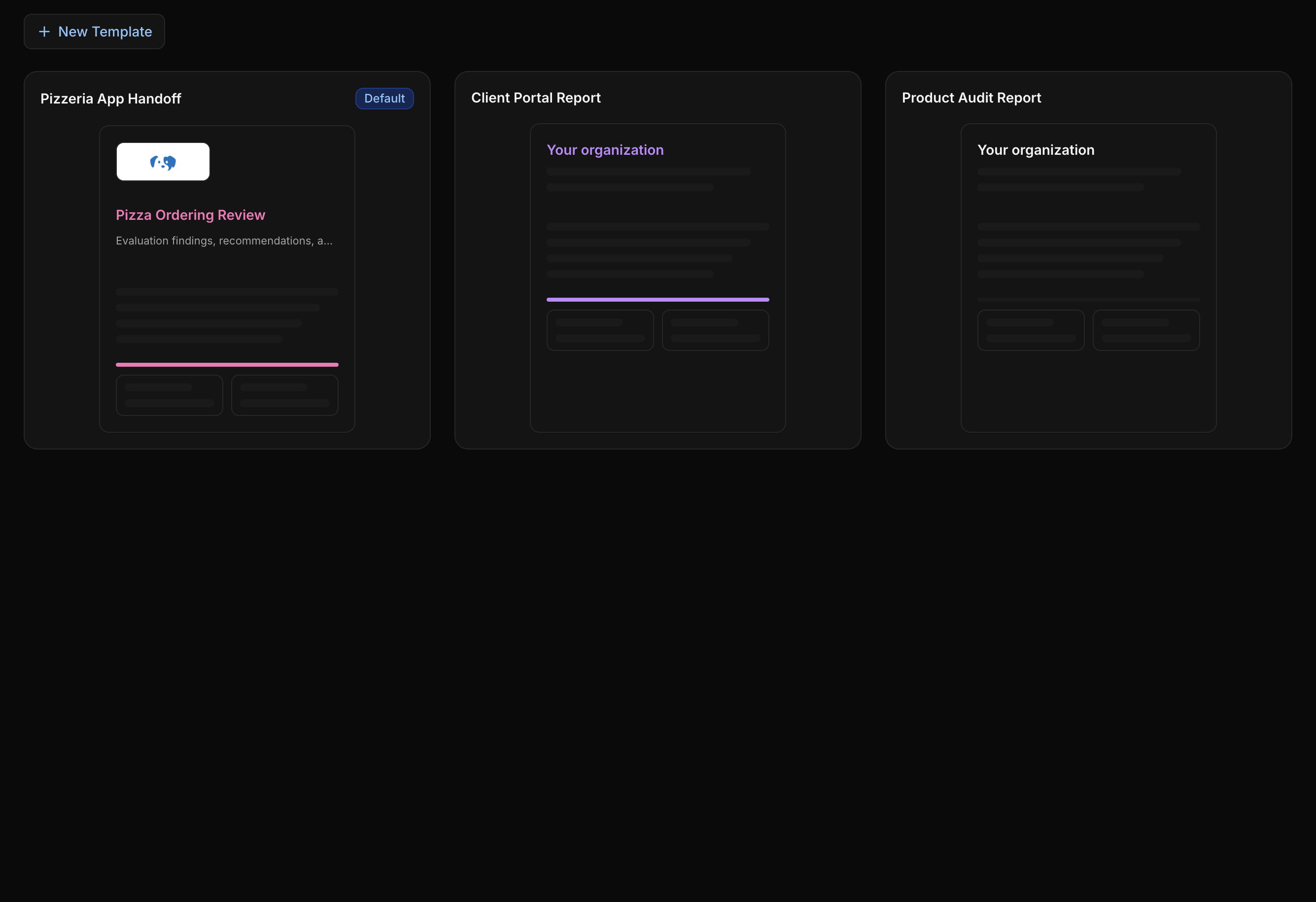
Create a Template
Template limit
Freelance accounts can create 1 saved handoff template. Professional includes 20 saved templates. Team includes unlimited saved templates.
To create a template:
- Open
Handoff. - Click
New Template. - Enter a
Template Name. - Click
Save.
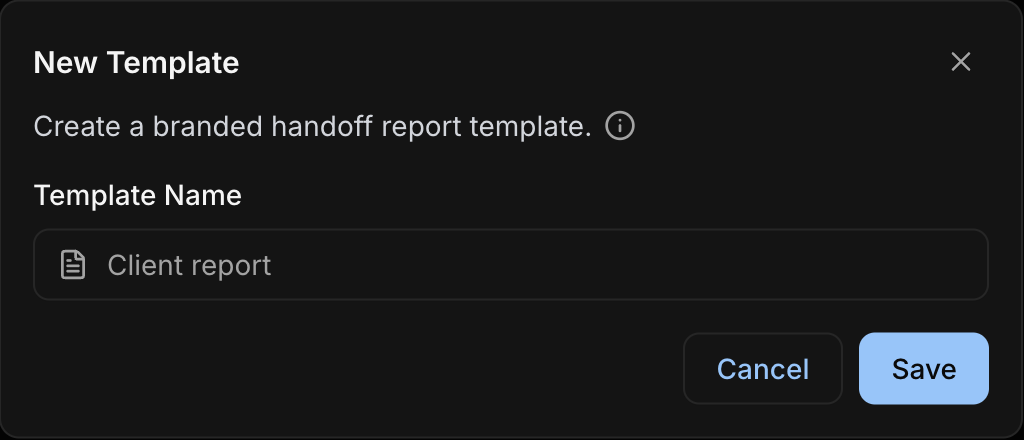
New templates start with Your organization as the heading and Classic as the layout style. Open the template card to finish branding and report settings.
Edit a Template
Click a template card to open the template editor.
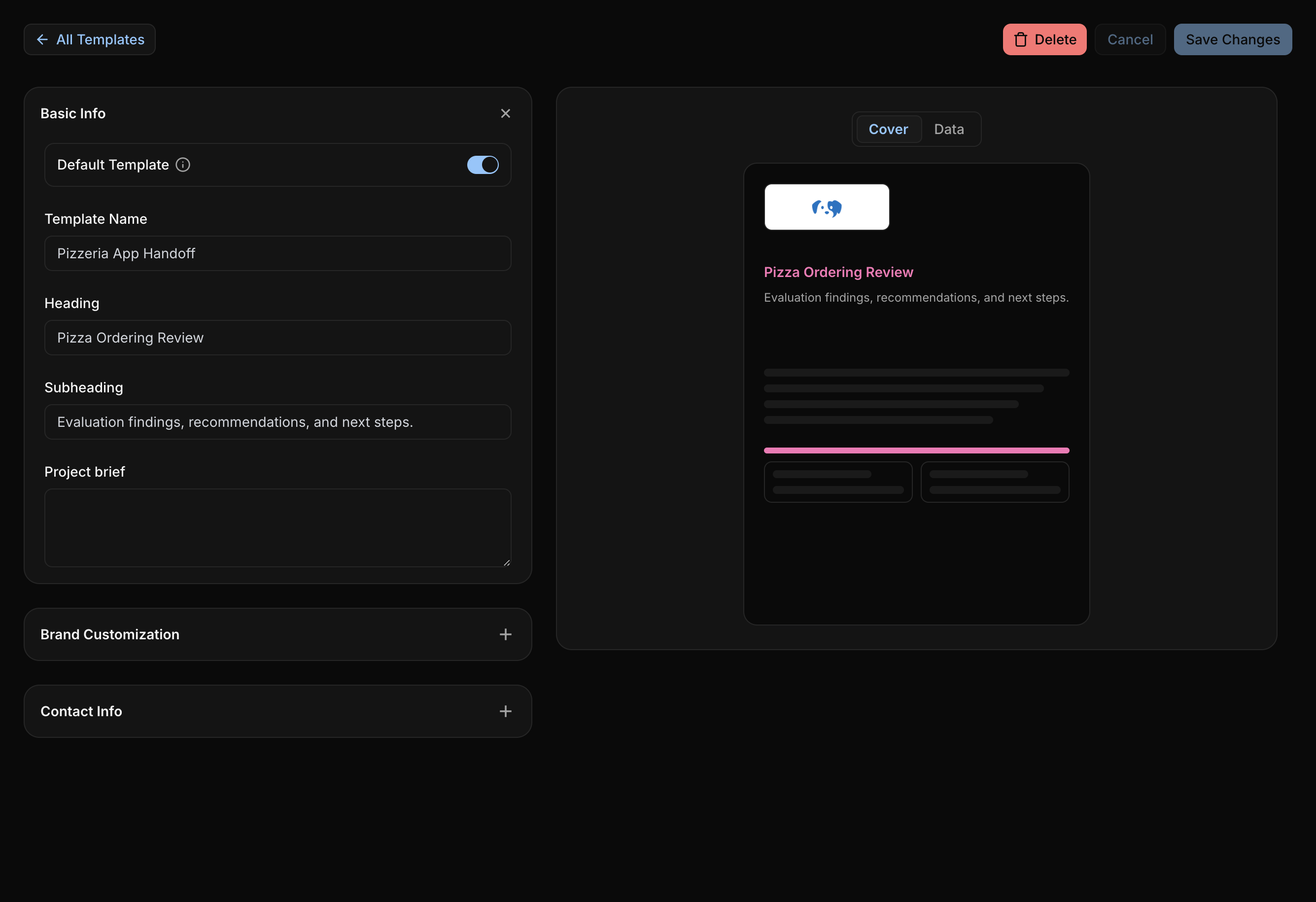
The editor includes:
Basic Info
Default Template: Pre-selects this template when exporting PDF reports and sorts it to the top of the template list.Template Name: The internal name shown on the Handoff template card and template selector.Heading: The main branded heading shown on the PDF cover.Subheading: Supporting cover text for the report.Project brief: Optional context about the project, evaluation, or client engagement.
Brand Customization
Paid branding controls
Paid plans unlock stronger PDF branding controls, including custom styles, accent colors, custom logos, and removing UXit branding from exported reports.
Logo: Upload, replace, or remove a report logo.Layout Style: ChooseClassicorFocused.Accent Color: Choose the report accent color.Footer: Add optional footer text.
Logo uploads support SVG, PNG, or GIF files up to 5 MB. PNG logos are resized when needed. GIF logos must be 2048 by 2048 pixels or smaller.
Contact Info
NamePhoneEmailWebsiteAddress
Use contact fields when the PDF should show who owns the work, who prepared the review, or where a client should follow up.
Layout Styles
More styles coming soon
Classic and Focused are available now. More report styles are planned as Handoff expands.
Custom style is more than color. It controls the report's layout, typography, visual emphasis, and how information is presented.
Classic: Gives the report a standard cover-first template with branded heading, supporting text, and report sections.Focused: Emphasizes the evaluation score and summary information earlier in the report.
Export a PDF
Handoff templates are used from Analytics when exporting an evaluation.
To export:
- Open
Analytics. - Open the
Detailstab for the evaluation. - Click
Export. - Choose a template.
- Click
Export.
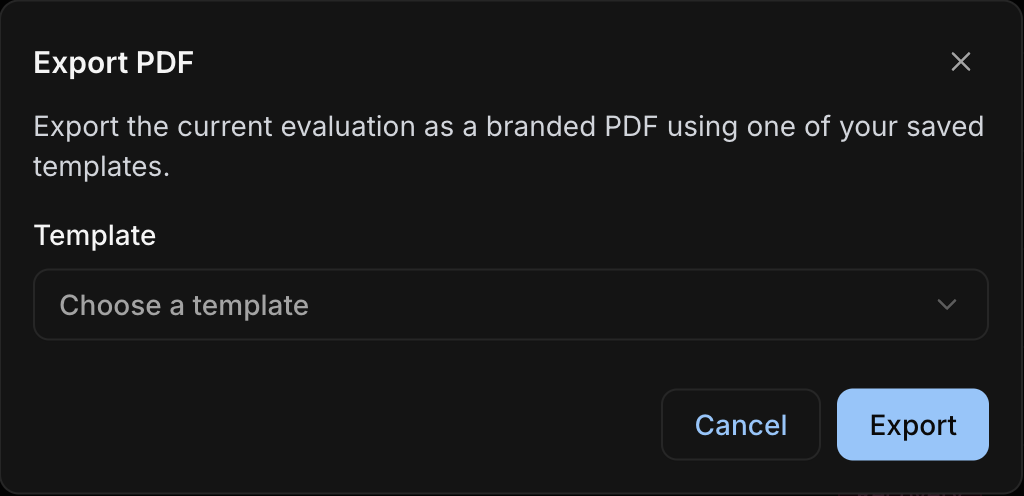
If a template is marked as Default, UXit pre-selects it in the PDF export flow.
Handoff vs Other Sharing
Use the right sharing path for the job:
Handoff: Branded PDF report for client or stakeholder delivery.Shareable Links: Read-only web access to Requirements work.Privacyexport: Structured account data from Settings.File Artifacts: Uploaded files and attachments stored in the Artifacts workspace.
Best Practices
- Create one default template that works for most reports.
- Use client-specific templates when the branding, contact information, or project brief needs to change.
- Keep template names clear so they are easy to choose during export.
- Use
Focusedwhen stakeholders need the score first. - Use
Classicwhen the report needs more traditional cover-page framing. - Review the exported PDF before sending it outside your team.