Artifact Files
Browse, preview, download, and manage uploaded file artifacts.
Overview
The Files tab is the file-management side of the Artifacts workspace.
Use it to browse, review, preview, download, re-attach, rename, and delete uploaded file artifacts. While files may appear in other testing workflows, this page is the central place where stored file artifacts are maintained over time.
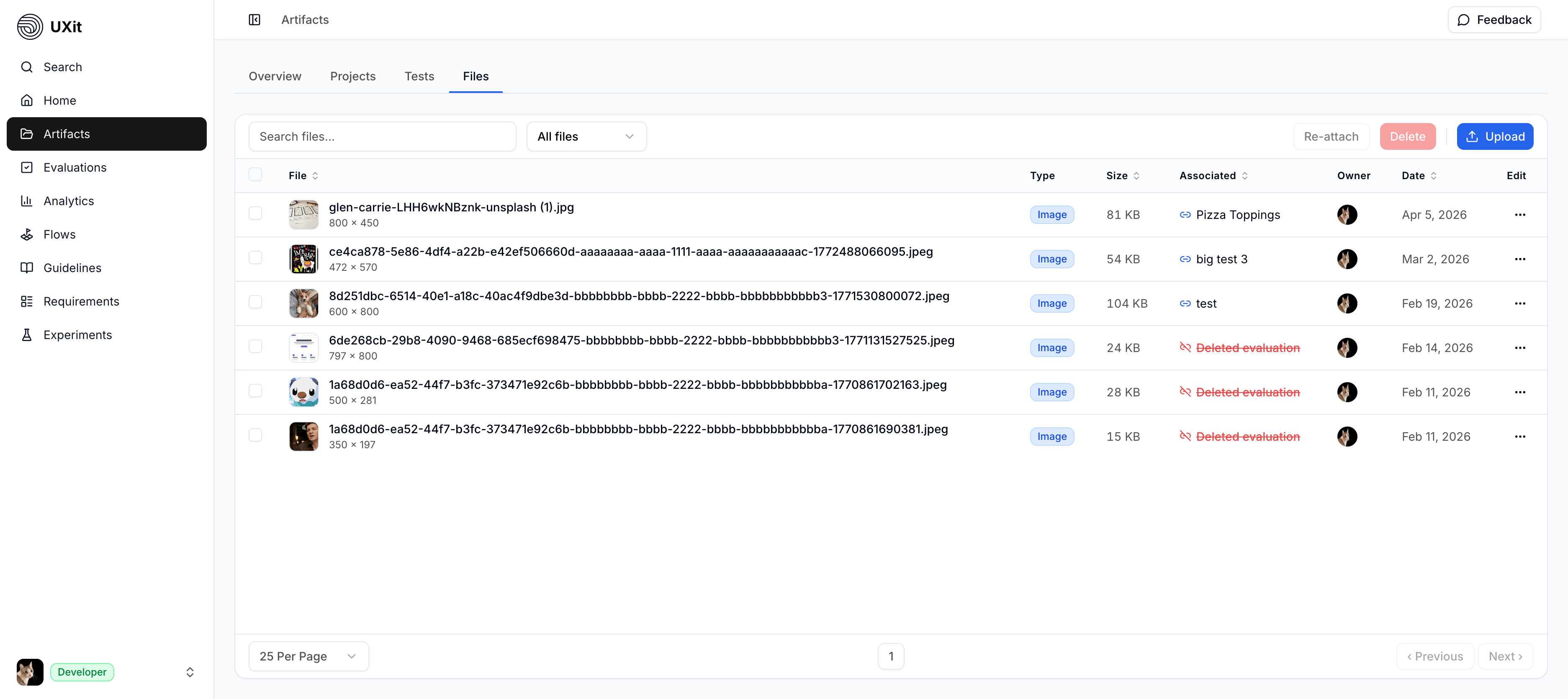
File Table
The Files tab displays uploaded file artifacts in a searchable, filterable table. Use Search to find a file by name, and use the dropdown All files filter to switch between media types.
Each row helps you understand what the file is, who uploaded it, when it was added, and whether it is still connected to active test content.
Select one or more rows to enable bulk actions such as Re-attach, Download, or Remove.
File Associations
The Associated column shows how a file is connected to test content.
These states are communicated with both icon changes and color changes so they remain easier to distinguish without relying on color alone.
A file can appear in one of these states:
MuseThe file is attached to a Muse session.Use CaseThe file is attached to a requirement use case.EvaluationThe file is attached to an evaluation.Deleted evaluationThe linked evaluation no longer exists, but the file remains in storage.Not attachedThe file exists in storage without a current association.
Removing a file from a test does not necessarily delete it from storage. File artifacts are managed from the Files tab so they can be reviewed, reused, or re-attached later if needed.
Re-attach Files
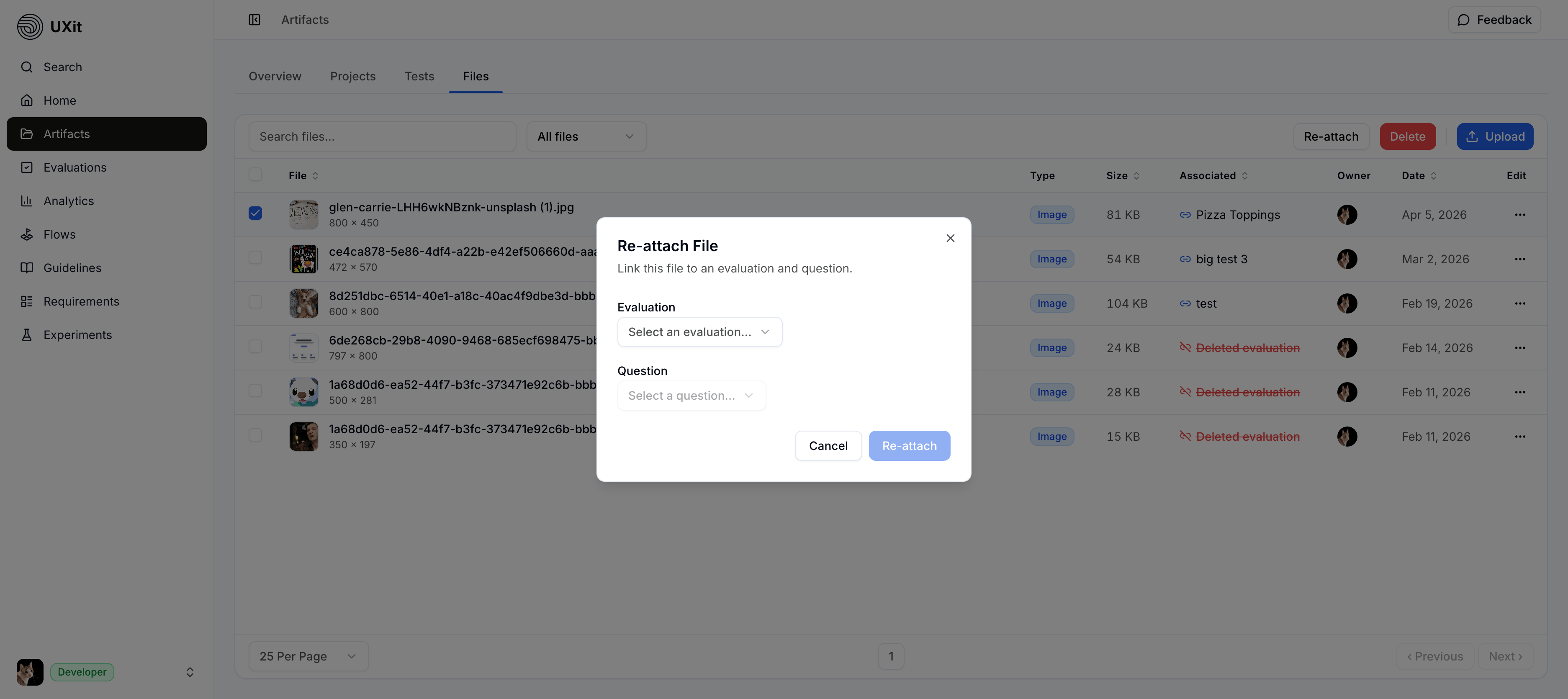
Use Re-attach when a file should belong to an evaluation question again. This is useful when an uploaded image is still valuable but its original evaluation link was removed, the evaluation was reorganized, or the file needs to be connected to a more accurate question.
Select one or more files, choose Re-attach, then pick the evaluation and question that should own the file. After the file is connected, the Associated column updates so the file is easier to trace back to the evaluation context where it belongs.
Delete Files
Use Remove from the bulk action bar, or Delete from a row action, then confirm in the dialog to permanently remove selected files from storage when they are no longer needed, are no longer attached to active evaluations, or are only taking up storage space.
Warning
Deleting file artifacts is permanent and cannot be undone.
Edit Column
The table includes an Edit column for file-level actions.
Current row actions include:
PreviewReview the file in a lightbox.DownloadSave the file locally.RenameUpdate the saved file name while keeping the file extension preserved.Re-attachConnect the file to an evaluation and question.DeletePermanently remove the file after confirmation.
Pagination
Use the pagination controls at the bottom of the table to move through larger result sets. The footer also shows how many artifacts are currently visible versus the total available, such as Showing artifacts: 10 of 10.