Evaluation Process
Review a design against guideline criteria, record answers, add evidence, and submit results.
What The Evaluation Process Does
The evaluation process is where you review a design against the criteria in the Guideline Set you already defined. You are not creating benchmarks or writing new criteria here. Instead, you are applying the current Guideline Set to the experience under review, recording your answers, and letting UXit calculate the results from those responses.
Understanding the Evaluation Workspace
When an Evaluation opens, you enter a focused review workspace for the selected Guideline Set.
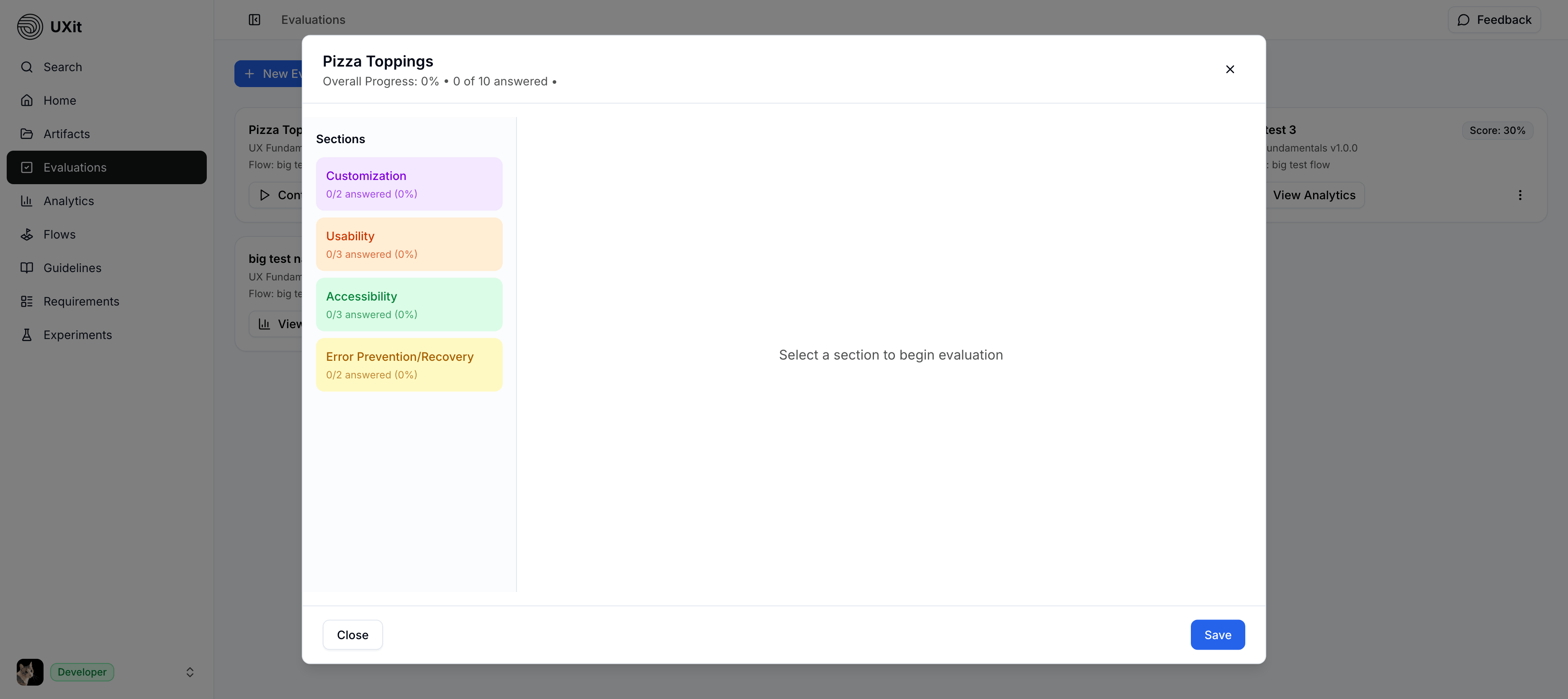
At the top, the workspace shows the evaluation name, save state, overall progress, and how many criteria have been answered so far. The left navigation groups related criteria so the review can be completed in a clear order.
Color labels
The names and colors in the left navigation are pulled from the selected Guideline Set. They help identify related criteria consistently, but they do not indicate Pass, Fail, NA (not applicable), or evaluation status.
Using The Review Tools
Use the left navigation to move between groups of criteria. Select a group, review the criteria in the main panel, answer each item, and add evidence when the decision needs more context.
Each criterion includes tools for scoring and evidence:
Criterion IDUse this short reference when discussing a finding in handoff, tickets, or follow-up review.Criterion textRead this as the rule being evaluated.Pass,Fail, orNA(not applicable) Choose the outcome for that criterion.Upload ImageAttach a screenshot, mockup, or visual example that supports the decision.AnnotationAdd a short note explaining what passed, what failed, or why the item does not apply.AttachmentsReview uploaded evidence tied to that specific criterion.
You can refine evidence later
You do not need to perfect every note or attachment while you are scoring. Test notes, images, and attachments can be updated later from the evaluation Details tab, and related files can be managed from Artifacts -> Files when you are preparing handoff materials.
Answering Criteria
For each criterion, choose the response that best matches the design or experience you are reviewing.
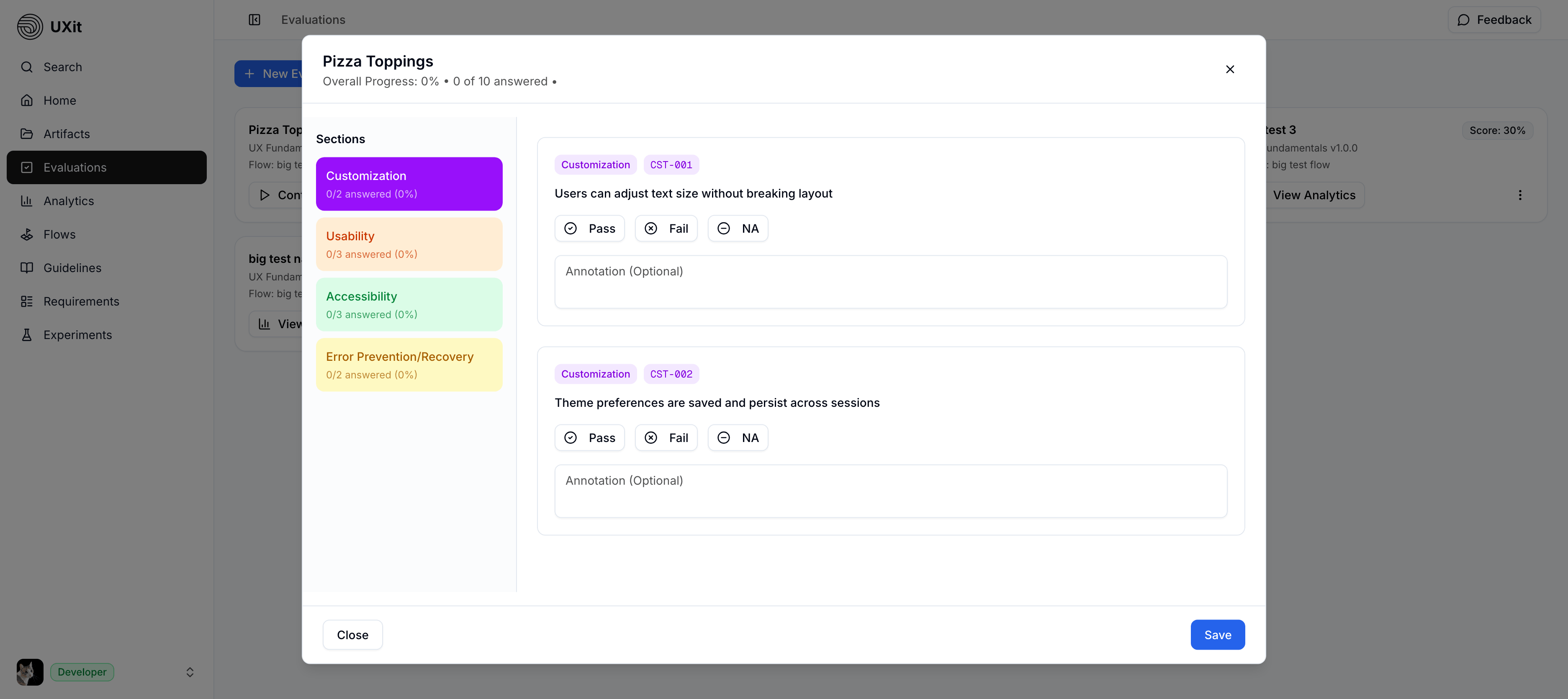
Use the responses this way:
PassThe design meets the criterion.FailThe design does not meet the criterion.NA(not applicable) The criterion does not apply to this version of the design and is excluded from the scoring math.
Only Pass and Fail affect scoring. NA is excluded from the final calculation.
Notes And Attachments
Each criterion includes an Annotation field for plain-text notes and an Upload Image action for visual evidence. Use both when the answer needs context beyond Pass, Fail, or NA (not applicable).
Notes are especially helpful when a criterion fails because of one specific element inside a larger page or screen. For example, a typography criterion may fail because only one paragraph uses the wrong size, or a button criterion may fail because only one button in a group is incorrect. The criterion still fails overall, but the note helps identify the exact paragraph, button, or location that needs attention.
Good notes are specific and location-aware. For example:
- One secondary button in the action group uses the wrong radius; see attached image for the exact button.
- Error message appears below the wrong input after an invalid OTP attempt.
- At mobile width, the pricing card CTA overlaps the plan description.
- Checkout passes overall, but the disabled state on one payment button is hard to distinguish.
Uploaded images appear under Attachments for that criterion. They can support later review, analysis, and Handoff because the visual evidence stays connected to the exact criterion it explains.
Future handoff support
A future UXit update will let teams optionally include annotation notes and uploaded images in handoff materials where they are applicable.
Excluded Criteria And NA
Exclude Condition belongs to the saved Guideline Set. Use it before an evaluation when a criterion should stay in the guideline set but should not appear in the evaluator for a specific reason, such as an older duplicate, a rule you are unsure about, or a criterion that belongs to a different product version. Excluded criteria do not show during the evaluation and are not counted in final scores or metrics.
NA means not applicable. It is selected during an Evaluation when a criterion appears in the evaluator but does not apply to the specific design or flow being reviewed. NA removes that criterion from scoring for this evaluation only. It does not change the saved Guideline Set.
Example
If a saved criterion is not ready to be used across future evaluations, exclude it in the Guideline Set. If the criterion is valid but does not apply to the current review, mark it NA during the Evaluation.
Saving Progress
Selecting Pass, Fail, or NA saves the response and updates progress. Use Save before leaving when you have added or changed annotation notes.
You do not have to finish everything in one sitting. You can save your progress, leave the Evaluation, and return later to continue.
Save Required
Click Save before leaving if you added annotation notes that still need to be stored with the evaluation.
Completion Rules
Every criterion must be answered with Pass, Fail, or NA before the evaluation can be submitted.
If even one criterion is left unanswered, the Evaluation cannot be fully submitted. This keeps the results complete and ensures the scoring logic has a decision for every included item.
Complete the evaluation carefully. Once it is submitted, the run becomes the record used for Analytics and benchmark comparison.
Best Practices
- Keep the design or prototype open in another tab or window while evaluating.
- Work category by category so progress is easier to track.
- Use notes whenever a failure needs extra context for handoff.
- Upload images when a visual detail explains the decision better than text alone.
- Use
NAonly when a criterion truly does not apply to the evaluated version of the design. - Save before leaving if you added or changed annotation notes.