Managing Criteria
Organize and maintain guideline criteria so evaluations stay clear, structured, and consistent.
Overview
When related checks are grouped in a logical sequence, evaluators can move through mockups, wireframes, or flows more quickly and with less mental switching. A stable structure also makes repeat evaluations easier to compare over time.
Why Order Matters
Reordering helps with:
- Faster evaluation flow.
- Lower cognitive load.
- More consistent reviews across versions.
- Cleaner comparisons in analytics over time.
The order of your criteria becomes the order evaluators move through during an evaluation, so it should match how your team naturally reviews the work.
When to Reorder
Reordering is most useful:
- Before running an evaluation.
- After adding new categories or criteria.
- When preparing a new version of a guideline set.
- When the current order feels harder to review than it should.
Reorder Criteria
Within a category, order criteria in a way that matches how someone actually reviews the design.
For example, related typography checks should stay together. If text size, text color, badge size, and spacing checks are scattered randomly, evaluations become slower and harder to follow.
Accessibility Category - Before
1. Interactive elements meet minimum touch target size requirements
2. Headings use the correct text size
3. Text meets minimum contrast requirements
4. Body text uses the correct text size
Accessibility Category - After
1. Headings use the correct text size
2. Body text uses the correct text size
3. Text meets minimum contrast requirements
4. Interactive elements meet minimum touch target size requirements
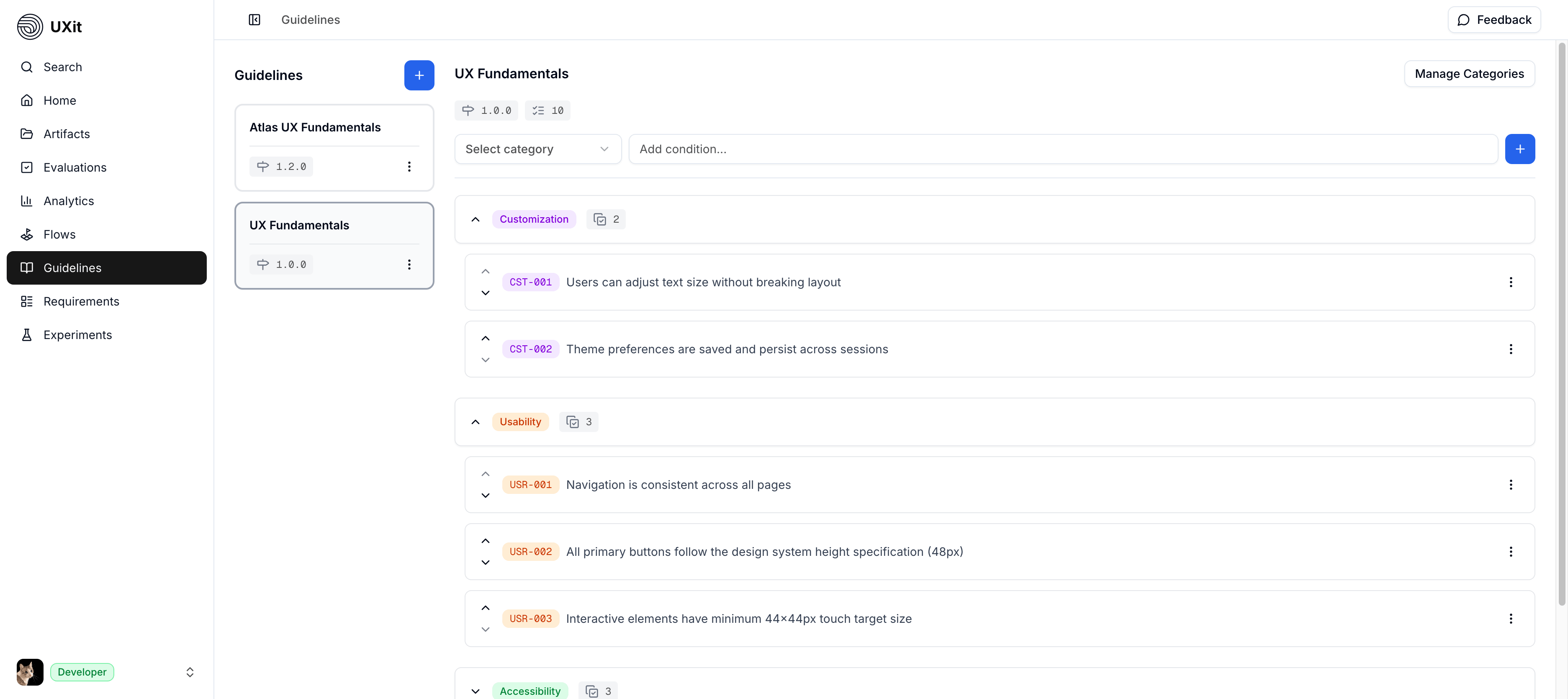
To reorder criteria:
- Open the guideline set.
- Find the criterion you want to move within its category.
- Use
chevron upandchevron downcontrols to the left of the criterion. - Click
Save
Criteria reorder only within their current category. If a criterion belongs in a different category, move it by editing the criterion instead of reordering it.
Save Changes
Reordering changes are not saved automatically. After adjusting category or criterion order, click Save to keep the new sequence.
Best Practices
- Group related checks together so evaluators can review them in one pass.
- Order categories and criteria the way your team naturally reviews mockups or flows.
- Keep the sequence stable across versions when you want meaningful comparisons over time.
- Revisit the order when the set grows, but avoid constant reshuffling unless it improves clarity.