Dashboard
Review artifact activity, completion status, and storage usage across your workspace.
Overview
The Overview tab is the top-level summary for the Artifacts workspace.
Use it to get a quick snapshot of activity, completion status, and storage usage across your artifact data. Instead of listing individual records, this page surfaces KPI-style summary cards that help you understand the overall state of stored artifacts at a glance.
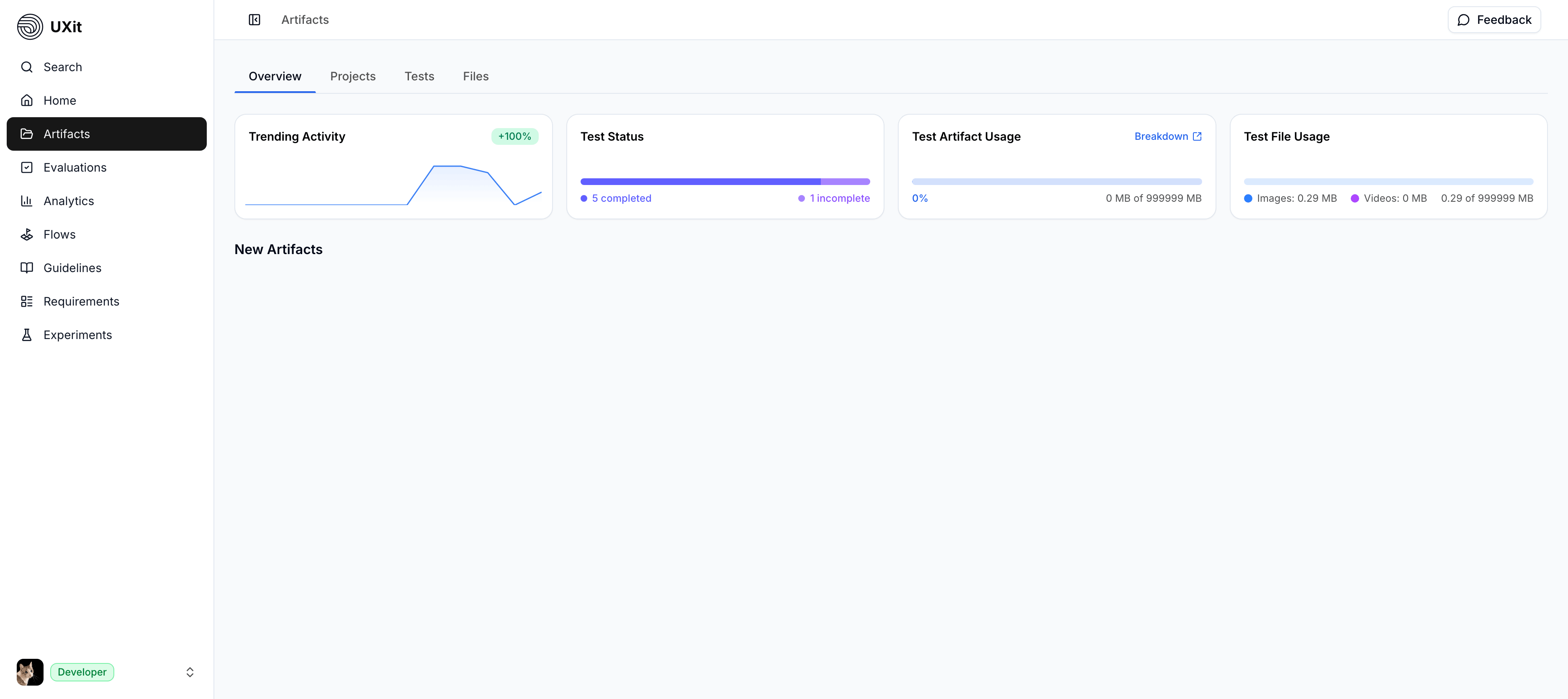
KPI Cards
At the top of the page, UXit shows a set of KPI cards that summarize recent activity and storage usage across the artifact workspace.
Together, these cards act as lightweight planning signals. In a shared workspace, they can help teams notice changes in testing activity or unfinished work. In an individual workspace, they can help a single user spot when testing has slowed down, see what is still incomplete, and decide where to refocus time.
Trending Activity
The Trending Activity card shows a high-level view of artifact-related activity over time.
This trend is intended to give teams a broad sense of testing momentum across the workspace, not a detailed record of every action. Over time, it can reflect the pace of completed evaluations and other artifact-related testing work.
Used carefully, this chart can help surface patterns that are worth investigating. For example, a noticeable dip in activity may suggest a slowdown in testing throughput, a blocked workflow, or a design area that is creating friction for the team.
Test Status
The Test Status card shows the split between completed and incomplete test records.
This gives you a quick read on how much testing work has been finished and how much is still in progress. Because some test workflows, such as evaluations, can be saved and completed later, incomplete records are a normal part of the workspace rather than a sign that something failed.
At a team level, this card can help highlight workload patterns. A larger number of incomplete tests may suggest that work is still underway, that testing is being deferred, or that the team is balancing other priorities.
Test Artifact Usage
The Test Artifact Usage card shows how much of your account storage allotment is being used by structured test artifacts.
This card is separate from file storage. It focuses on test-related records and other structured artifact data rather than uploaded media such as images or videos. While structured test records are often more compact than file-based assets, they still count toward your overall storage usage and can grow over time as more evaluations and artifact types are added.
Use this card as a quick storage gauge for test data at the account level.
Artifact Storage Breakdown
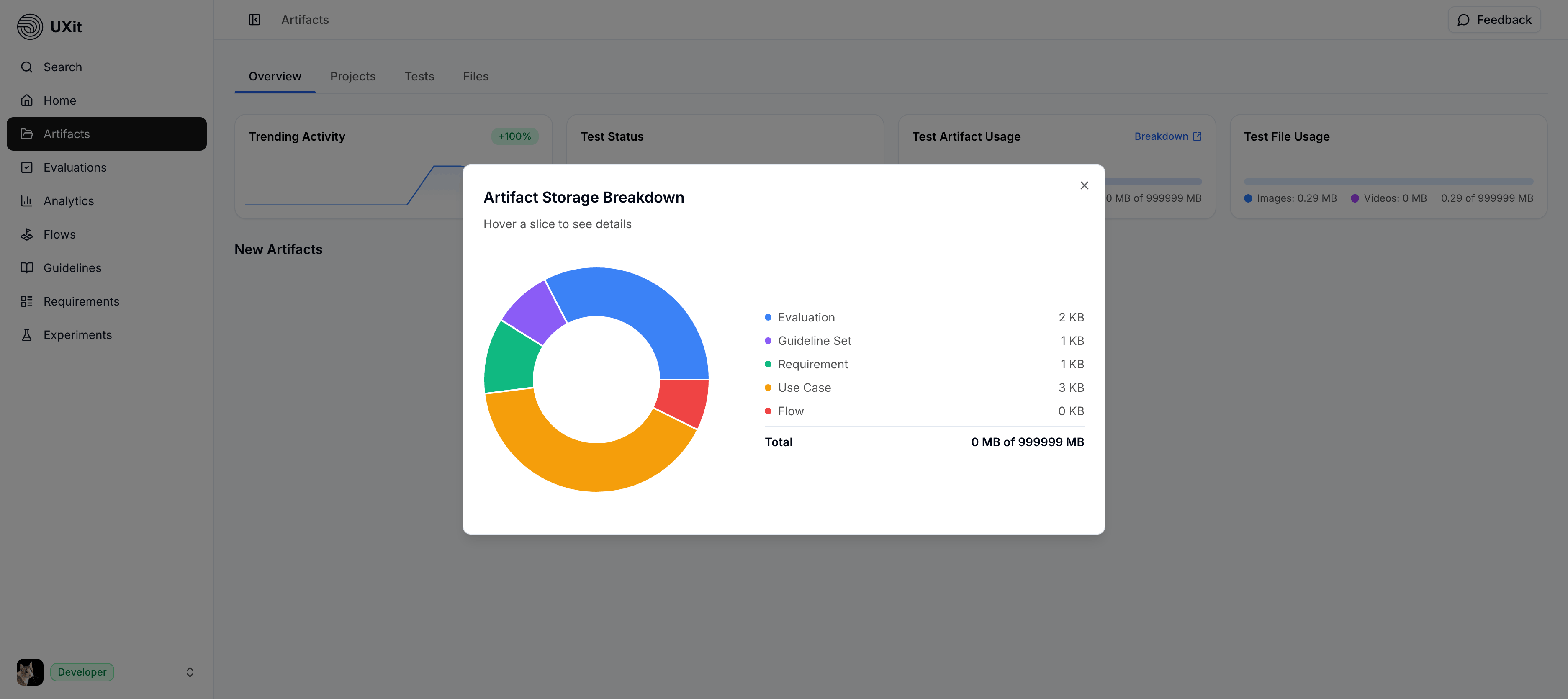
Use Breakdown in the Test Artifact Usage card to open a more detailed view of structured test storage.
This view displays an interactive donut chart that breaks test artifact usage down by artifact type. Hover over a slice to isolate that category and inspect it more easily. As additional test artifact types are introduced, they can also appear in this breakdown.
Test File Usage
The Test File Usage card shows how much storage is being used by uploaded test files.
This includes file-based artifacts added to tests, such as images and videos. The card separates usage by file type so you can quickly see how much of your file storage is tied to each category.
Use this card alongside Test Artifact Usage to understand the difference between structured test data and uploaded file assets. This card is the best place to check how much hosted file artifact storage your workspace is using against your plan capacity.
New Artifacts
Below the KPI cards, the page includes a New Artifacts section.
Beta
This section is still in development and may not yet display recent artifact activity.
When complete, this area is intended to surface a small set of the most recently created artifacts so users can quickly return to recent work from the overview page.