Evaluation Management
Create, organize, and track evaluation records for flows over time.
What is an Evaluation?
An evaluation is a versioned assessment of a flow against a selected guideline set. Each run creates a saved record tied to a specific user journey, its current score, and its later comparison history in Analytics.
The Evaluations page is the management view for this system. It is where you:
- Create a new evaluation.
- Review existing evaluation records.
- Check each evaluation's current score.
- Jump into Analytics for a tracked flow.
For the step-by-step reviewer workflow, see Evaluation Process.
Understanding the Evaluations Page
This is the main Evaluations management screen:
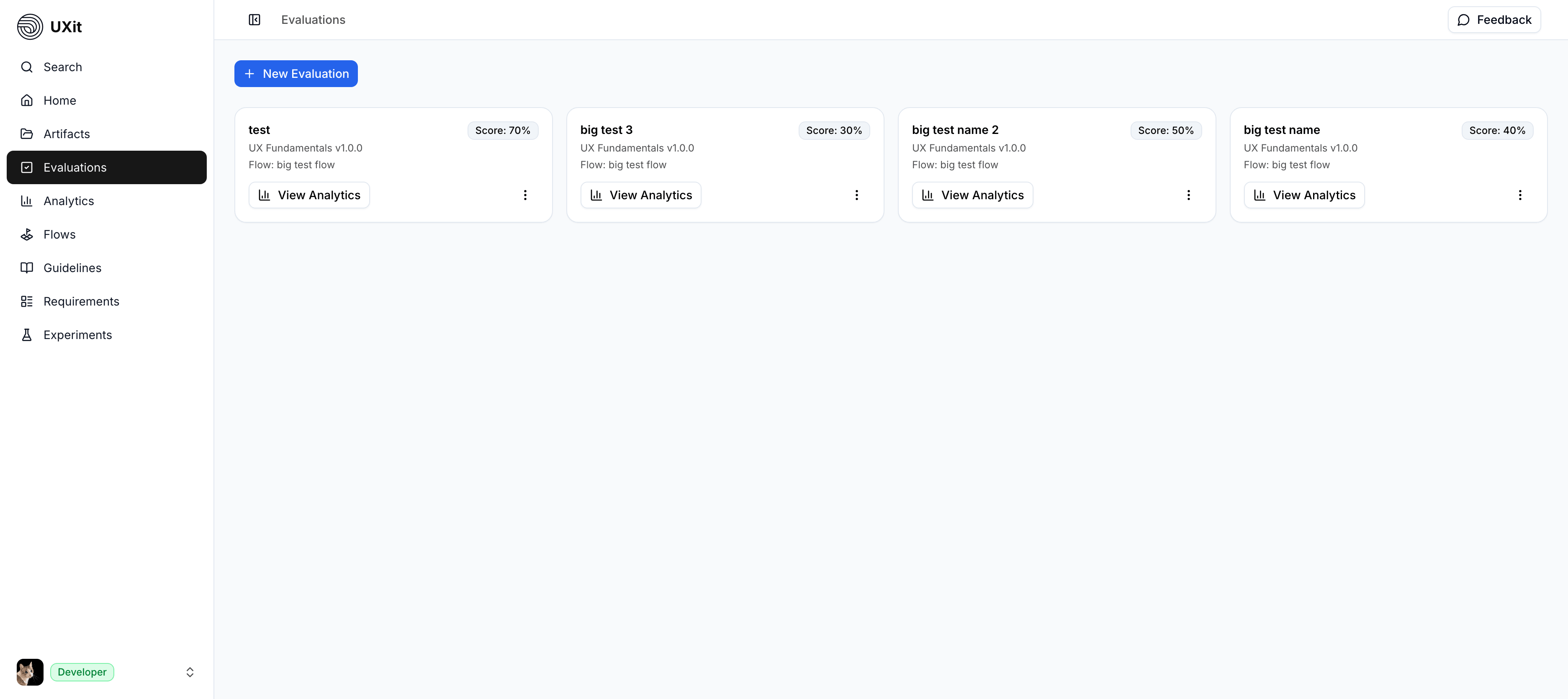
Each card represents an evaluation record and gives you quick context before you open it:
- Evaluation name: The label for that evaluation session.
- Guideline set: The selected guideline set used for scoring.
- Flow: The user journey this evaluation belongs to.
- Score: The latest overall result shown on the card.
- View Analytics: Shortcut to the flow's trend and comparison data.
Before You Evaluate
- Guideline Set (Required): Every evaluation must use a guideline set. The guideline set defines the criteria you are measuring against.
- Flow (Required): Every evaluation is attached to a flow. The flow is the specific user journey you want to track over time.
Tip
If your team already has a defined scenario, you can create a standalone flow and start evaluating right away. If you are working from Requirements, import the Use Case into Flows first and evaluate that tracked journey.
Create a New Evaluation
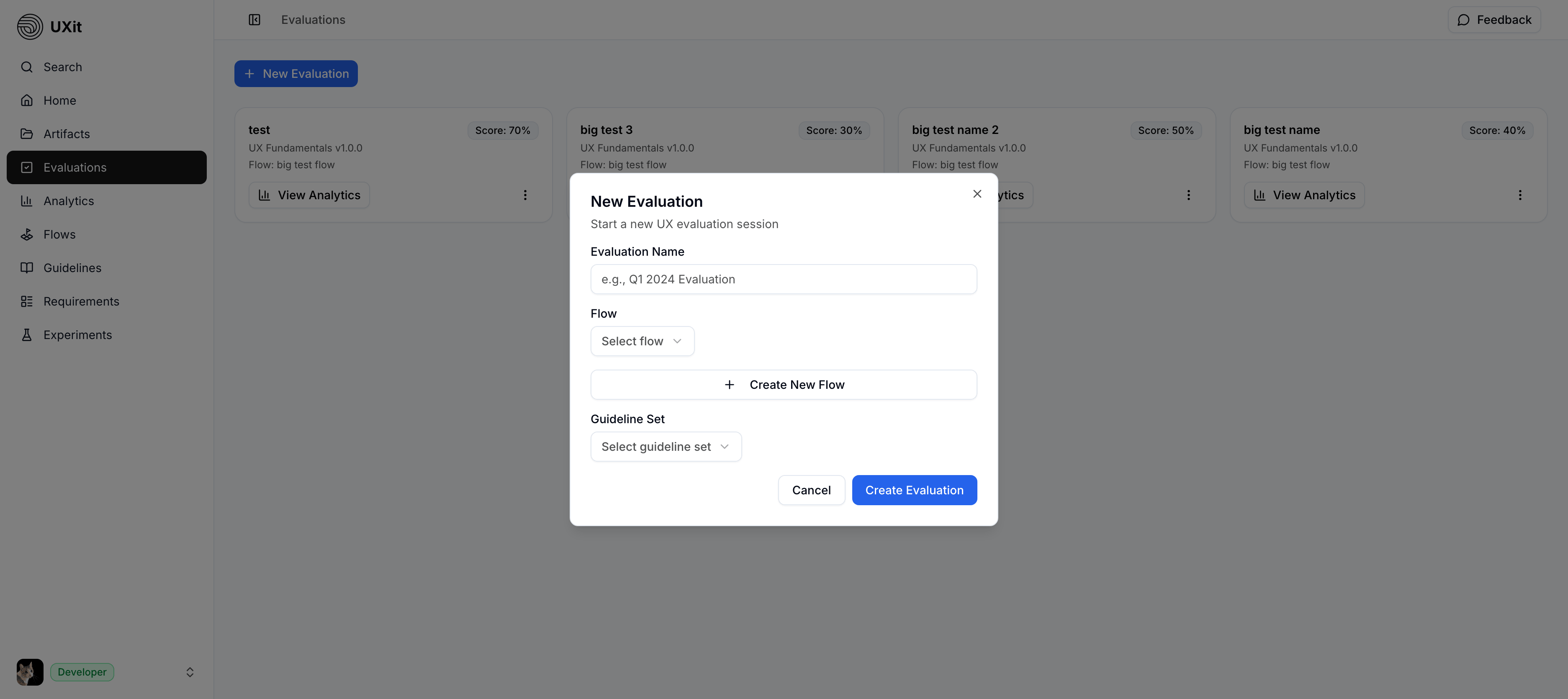
From the Evaluations page, click New Evaluation to start a new evaluation session.
The modal is where you attach the evaluation to the right flow and guideline set:
- Enter an evaluation name.
- Select the flow you want to evaluate.
- Select the guideline set you want to test against.
- Click
Create Evaluation
Create a Flow
If the flow does not exist yet, you do not need to leave the page. Use Create inside the same modal, enter the flow name, save it, and then continue creating the evaluation.
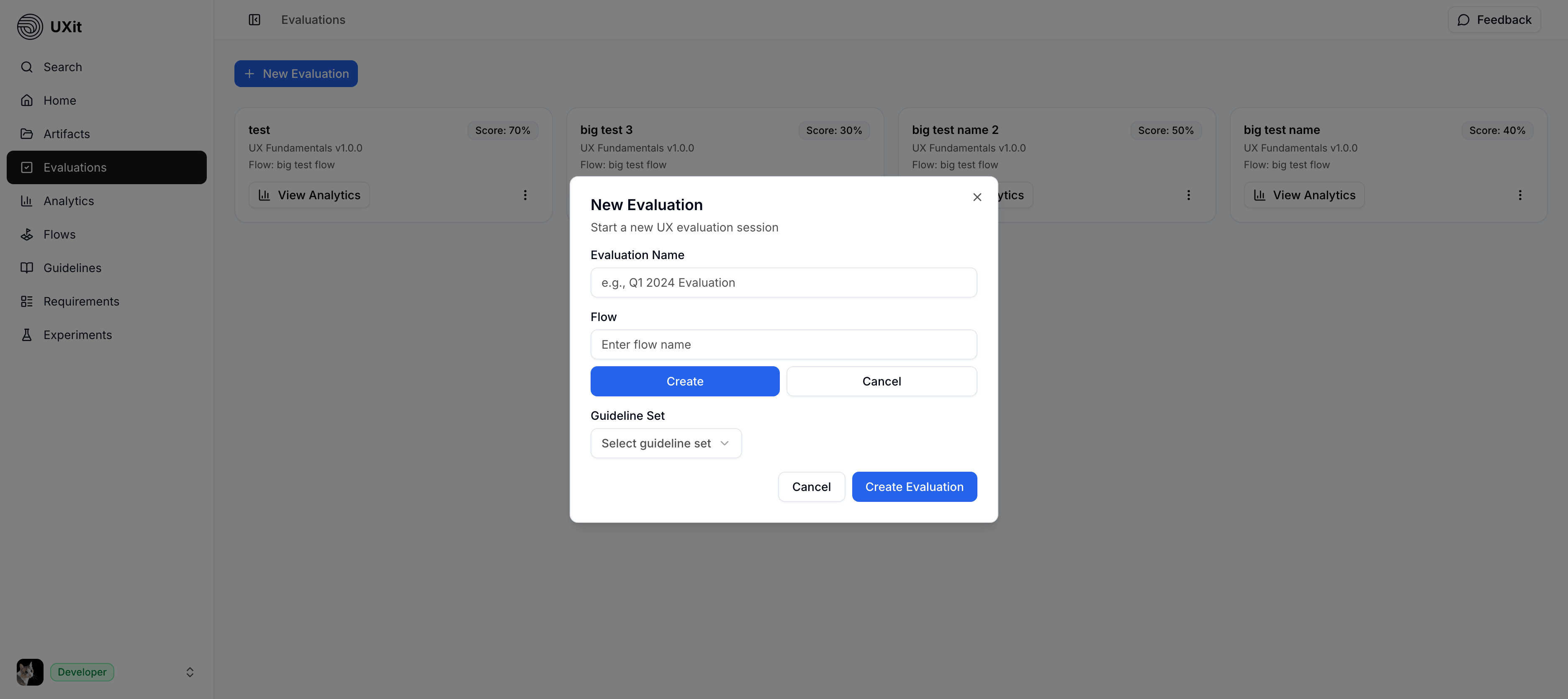
This keeps evaluation setup inside one management workflow instead of forcing you to switch pages first.
Quick Evaluation Reference
Once an evaluation is opened, each criterion is answered using one of three response types:
Pass   -> Design meets this criterion successfully
Fail   -> Design does not meet this criterion
N/A    -> Criterion is not applicable to this evaluation
The full reviewer workflow lives on the Evaluation Process page. This page focuses on creating, tracking, and revisiting evaluation records.
Evaluation Versions & Tracking Progress
The real value of evaluations comes from versioning. When you evaluate the same flow against the same guideline set again, UXit creates a new version that can be compared over time in Analytics.
Initial Design Assessment
    v
v1 Evaluation (65% overall score)
    v
Make Design Changes
    v
v2 Evaluation (78% overall score)
    v
Make More Improvements
    v
v3 Evaluation (85% overall score)
This version history is what allows Analytics to show trends, regressions, and improvements across iterations.
Continue vs. Create:
- Continue: Use the same flow when the core user goal is still the same. Re-running the evaluation creates v2, v3, and later versions for trend tracking.
- Create: Create a new flow when the journey itself has changed enough that it no longer represents the same scenario.
- Keep guidelines stable: Changing the guideline set may still be useful, but it makes version-to-version comparisons less reliable.
Viewing Results
After an evaluation is completed, it remains visible in the management view and becomes part of that flow's tracked history. Use the score on the card for a quick read, then open Analytics for deeper comparison.
- Status: C Grade
- Category breakdown: Usability 82%, Accessibility 75%, Performance 73%
- Detailed results include examples such as:
- Question 1.1 (Usability): Pass
- Question 1.2 (Usability): Fail
- Question 2.1 (Accessibility): Pass
- Additional questions continue in the same format
From the Evaluations page, each card also gives you a quick View Analytics action so you can move directly from an evaluation record into historical comparison for that flow.
Best Practices
- Keep the flow stable: Continue the same flow when the goal stays the same so trend data remains meaningful.
- Keep guidelines stable across versions: Reuse the same guideline set when you want valid comparisons over time.
- Run evaluations regularly: Re-evaluate after design changes to build a useful version history.
- Use Analytics after each round: Review score changes and category shifts to decide what to improve next.
- Use the process page while reviewing: When you are actively answering criteria, follow the
Evaluation Processworkflow rather than treating this page as the review workspace.