Flows
Create, manage, and version flows so UXit can track the same user journey over time.
What are Flows?
A flow is a predefined user journey that UXit can evaluate over time. In most cases, a flow is derived from a Use Case and kept aligned to the same core user goal so results stay comparable across versions.
The core power of flows is tracking progress. You run multiple evaluations of the same flow against a consistent guideline set to measure improvements, regressions, and longer-term patterns.
How Flows Work
A flow should stay anchored to the same underlying user goal even as the product changes.
For example, a flow might be "Add pizza toppings." One version of that experience may use dropdowns, while a later version may use an AI assistant. The implementation can change, but if the goal is still the same, it is usually still the same flow.
That stability is what makes trend tracking useful. When UXit evaluates the same defined flow over time, it can compare versions, surface regressions, and show where updates are improving or hurting the experience.
Every flow requires:
- A defined flow - A specific, stable user journey, feature path, or workflow you want to evaluate
- A guideline set - The rules and criteria you'll measure the flow against
- Evaluations over time - Each evaluation becomes a version (v1, v2, v3, etc.) of that same flow
Flows are also required to run evaluations. In UXit, you cannot evaluate without selecting an existing flow or creating a new one first.
If you only run one evaluation against a flow, that is still valid. But the real value of flows comes from repeated evaluations of the same defined journey so Analytics can show progress, regressions, and longer-term patterns.
Understanding the Flows Interface
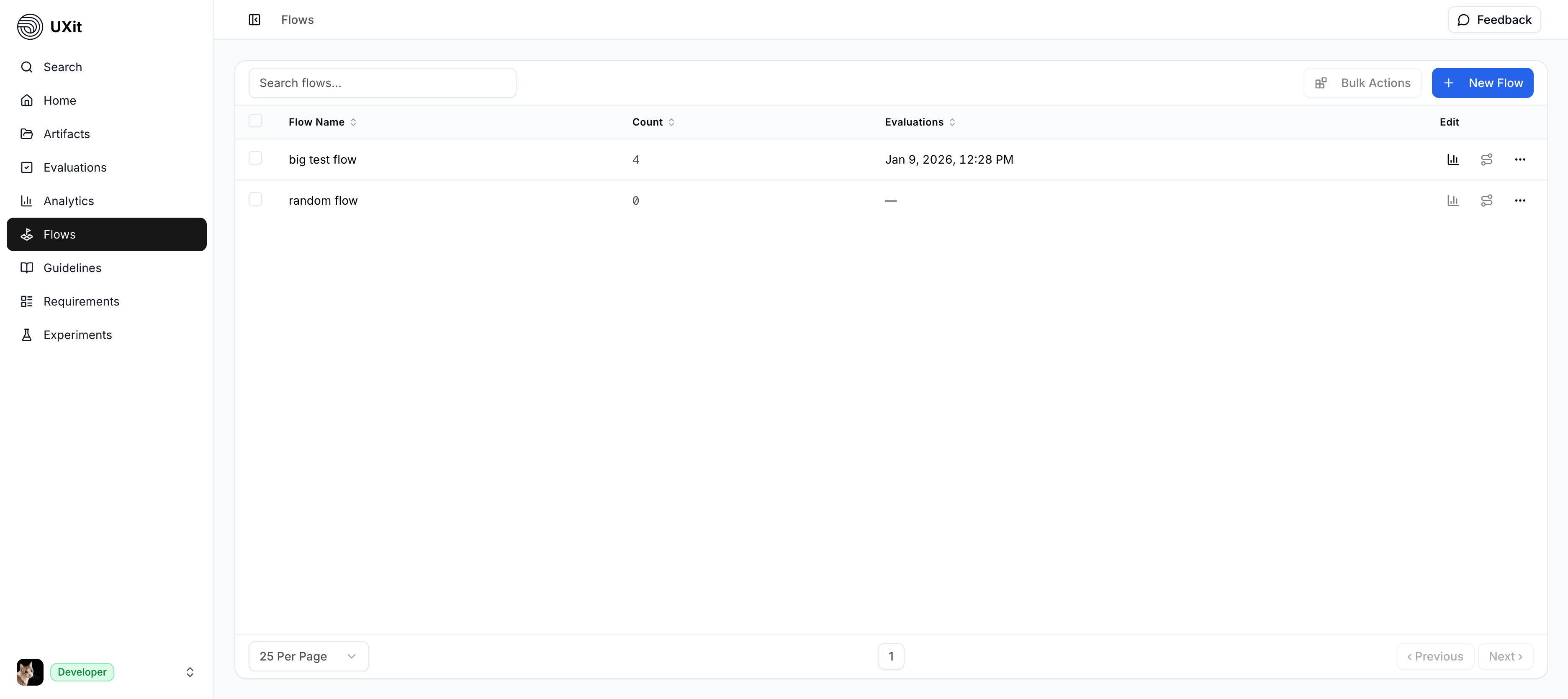
When you open Flows, you'll see:
- Flow Name - The name of the journey you are tracking
- Count - How many evaluations are attached to that flow
- Evaluations - The date of the most recent evaluation when one exists
- Edit actions - Controls for editing or deleting the flow
Creating Your First Flow
You have two options:
Option 1: Import from Requirements
- Define your Requirement and Use Case first
- Create a flow by importing the Use Case into Flows
- Keep the flow aligned to that same core scenario over time
- Use the flow when running evaluations
Option 2: Create Standalone
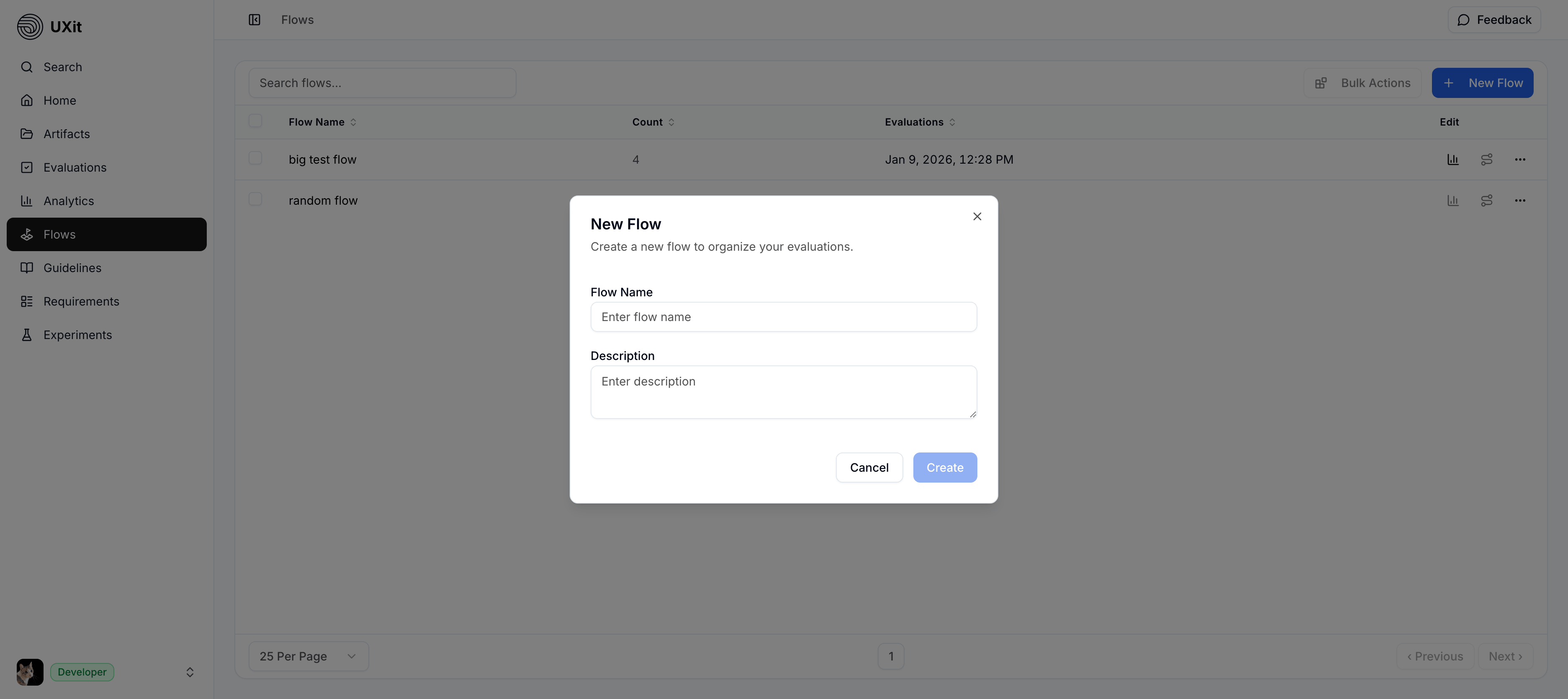
- Click "New Flow"
- Give your flow a descriptive name (e.g., "Checkout Process", "Dashboard UX")
- Save the flow
- Use it when running evaluations
Standalone flows are useful if you already have a well-defined process in your organization and don't want to remap it through Requirements.
Flow Versioning: Continue vs. Create New
When ready to evaluate after making changes:
Continue the Flow
Use this when the core user goal is still the same, even if the design changes:
- Bug fixes
- UI tweaks
- Performance improvements
- Minor refinements
- Updated acceptance criteria for the same scenario
This adds a new evaluation version (v2, v3, etc.) to the existing flow, allowing UXit to track progress on the same journey over time.
Create a New Flow
Use this when the journey itself is different:
- Complete redesigns
- Major workflow changes that redefine the scenario
- A different user goal
- A different path that no longer matches the original use case
This creates a new tracking baseline while preserving the old flow's history.
Key insight: Continue the same flow when the goal is still the same, even if the implementation changes. Create a new flow only when the journey itself is meaningfully different.
Managing Flows
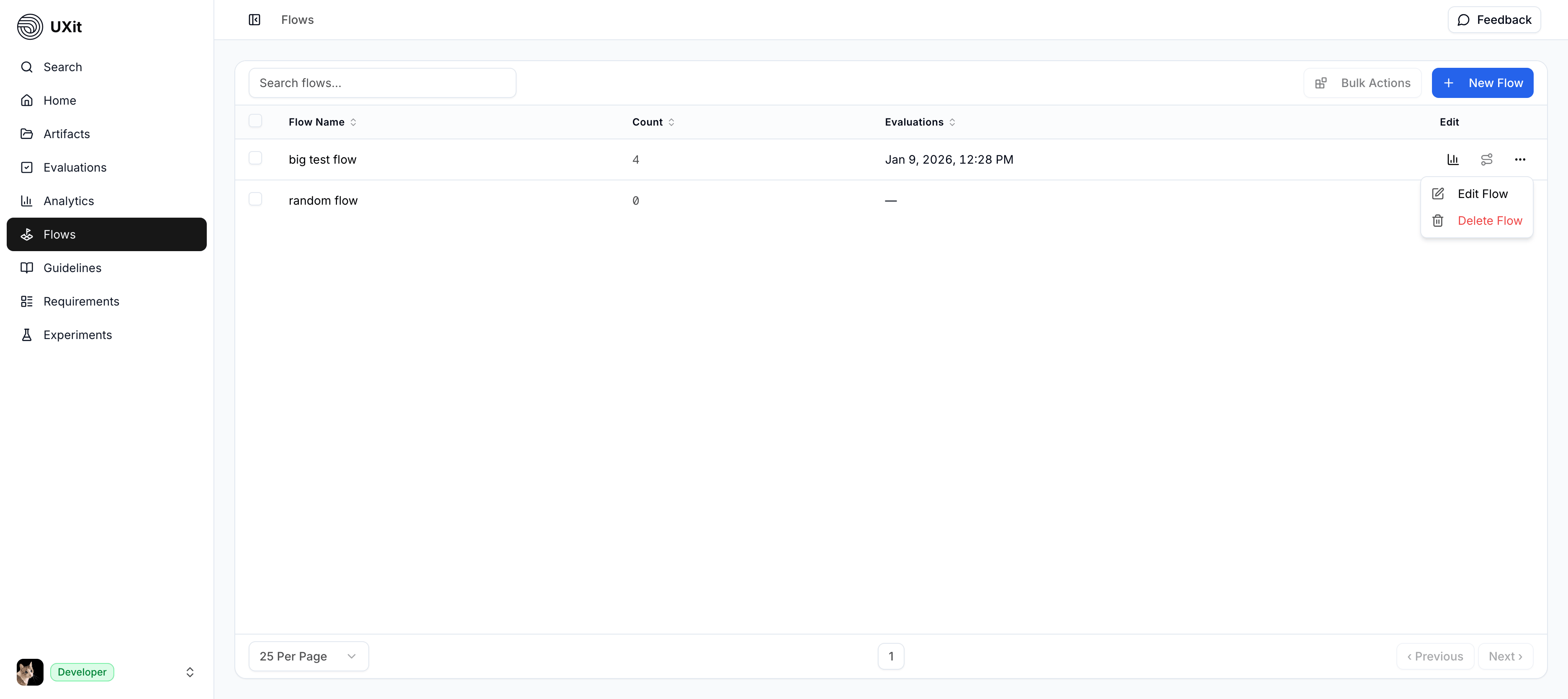
Use the flow action menu to manage an existing flow.
Viewing Flow Analytics
Once you have multiple evaluations, you can analyze:
- Current Performance - Your most recent overall score
- Historical Trends - How scores have changed from v1 → v2 → v3, etc.
- Category Comparison - Which areas improved vs declined
- Problem Areas - Consistently low-scoring categories
Best Practices
- Establish guidelines first - Set up your core guidelines before starting flows so all evaluations are measured consistently
- Name flows descriptively - Use clear names that help your team understand the journey being evaluated
- Keep the goal stable - The more stable the flow definition is, the more useful your comparisons will be over time
- Continue intentionally - Most of your work will be continuing flows, not creating new ones. That's where the trend data comes from.
- Keep guidelines stable - Only update guidelines when there's a major design system change. Frequent guideline changes make it hard to compare v1 vs v2 results.
- Archive when done - When a flow is no longer relevant, archive it to keep your list clean
- One-off evaluations are okay - You can run a single evaluation for quick feedback, but flows show their value most clearly after multiple versions